WhatsApp Click-to-Chat Links: The Complete Guide for Businesses
By Instant Tools Hub Team · Published: 18 May 2026 · 4 min read
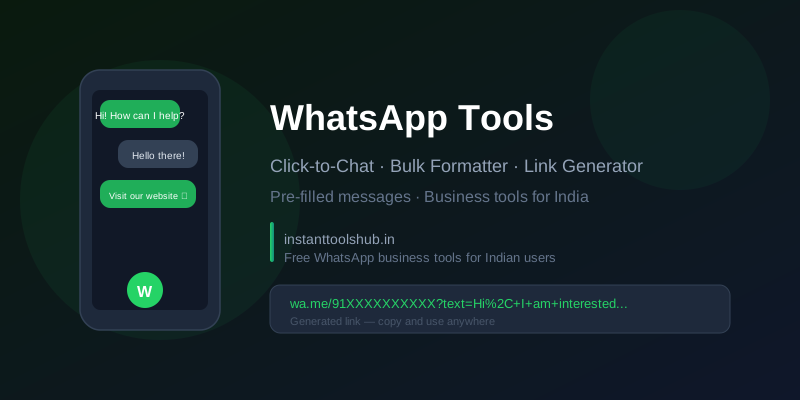
A WhatsApp click-to-chat link opens a WhatsApp chat with a specific phone number directly — the person clicking does not need to save your number in their contacts first. For businesses, this dramatically reduces friction for customers who want to get in touch.
What is a click-to-chat link?
It is a special URL in the format https://wa.me/<phone-number> that, when tapped or clicked, opens WhatsApp and starts a chat with that number. You can also pre-fill a message so the customer sees a ready-to-send greeting as soon as the chat opens.
How to create a click-to-chat link (free)
- Open the WhatsApp Tools page on Instant Tools Hub.
- Select the Click-to-Chat Generator tab.
- Enter your phone number with the country code — for India, that is 91 followed by your 10-digit mobile number (no spaces, no dashes).
- Optionally type a pre-filled message such as "Hi, I would like to know more about your services."
- Copy the generated link and place it on your website, Instagram bio, or anywhere you want customers to reach you.
Where to use click-to-chat links
- Website contact button: Replace a generic "Contact Us" form with a "Chat on WhatsApp" button.
- Instagram bio: Add the link in the one URL slot your Instagram bio allows.
- Google Business Profile: Add the link as a custom action so customers can reach you from Google Maps search results.
- Email signatures: Include a "WhatsApp me" link in your email signature for quick follow-up.
- Facebook Page: Add it as a call-to-action button on your Facebook business page.
- Digital visiting cards: Add it to Canva or other digital business card designs.
WhatsApp text formatting tips
When crafting messages for WhatsApp Business, you can apply formatting:
- Bold: Wrap text with asterisks —
*bold text* - Italic: Wrap text with underscores —
_italic text_ Strikethrough:Wrap text with tildes —~strikethrough~Monospace:Wrap text with backticks —`code`
Use the text formatter inside our WhatsApp Tools to preview and copy formatted messages quickly.
Best practices for businesses
- Use a dedicated WhatsApp Business number, not your personal number, so you can manage business chats separately.
- Set up a WhatsApp Business greeting message so customers get an instant reply even when you are offline.
- Pre-fill a message in your click-to-chat link to make it clear what the customer is enquiring about, reducing back-and-forth.
Click-to-chat vs WhatsApp Business button — what is the difference?
WhatsApp offers an official "Chat" button widget that can be embedded on websites. However, it requires business verification and more technical setup. Click-to-chat links are simpler — they are plain URLs that work everywhere: Instagram bio, Google Business Profile, email signatures, QR codes, and printed visiting cards. For most small businesses and freelancers, a click-to-chat link is faster to set up and works on more surfaces than the official widget.
Adding a pre-filled message to your link
A standard click-to-chat link looks like this: https://wa.me/919876543210. To pre-fill a message, add the ?text= parameter with URL-encoded text:
https://wa.me/919876543210?text=Hi%2C%20I%20am%20interested%20in%20your%20services
When a customer clicks this link, WhatsApp opens with the message "Hi, I am interested in your services" already typed in the chat box — they just tap Send. The WhatsApp Tools generator handles URL encoding automatically so you do not need to manually convert spaces and special characters.
Tracking clicks on your WhatsApp link
A plain wa.me link cannot be tracked natively, but there is an easy workaround: shorten your click-to-chat link first using a URL shortener, then use that shortened link everywhere. This way, you can monitor how many people click through to WhatsApp from different channels — your website vs Instagram vs Google profile — giving you useful data on which placement drives the most enquiries.
You can use the URL Shortener inside Creator Tools to shorten your click-to-chat link and create a cleaner, more shareable URL.
QR code for WhatsApp — a powerful offline strategy
Print your WhatsApp click-to-chat link as a QR code on business cards, shop signage, menus, or packaging. When customers scan it, WhatsApp opens directly with your number. This bridges the gap between physical materials and digital communication without customers having to type a long URL or find you in search.
Generate a QR code for your WhatsApp link using the free QR Code Generator — paste your wa.me link, download the PNG, and print it anywhere.
Common mistakes to avoid
- Wrong country code format: Always include the country code without the leading + or 0. For India: 91 followed by 10 digits. Example: 919876543210, not +91 9876543210.
- Linking to a personal number publicly: Once your number is live in a public link, it can be scraped by bots. Use WhatsApp Business — it gives you more control over hours, auto-replies, and message filtering.
- No greeting message set up: If someone messages outside business hours and gets silence, they may not wait for a reply. Set up a WhatsApp Business auto-reply for off-hours.
- Using a group link instead of a direct link: Group invite links are different from click-to-chat links. Double-check you are sharing the correct type.
Step-by-step summary
- Open WhatsApp Tools on Instant Tools Hub.
- Enter your phone number with country code (e.g., 91XXXXXXXXXX for India).
- Type a pre-filled message (optional but recommended for business use).
- Copy the generated link and add it to your Instagram bio, website, email signature, or print it as a QR code.
- Test the link by clicking it on your own device to confirm it opens WhatsApp correctly.